
Our product · for Dynamics 365 Finance and Operations
Finance and Operations setup you can prove.
DynaAX Operations Studio compares setup between environments and legal entities, checks what drifts, copies batch jobs and ends every run in a signed record.
- Comparisons only read
- Runs on your computer
- No AI sees your data

The problem
UAT says one thing. Production says another.
Configuration drifts. A parameter set in UAT never reaches production, a new legal entity is copied with a few settings missed, or a database refresh overwrites weeks of work.
UAT Accounts payable parameters
- Terms of paymentNet 30
- Post product receipt in ledgerYes
- Invoice matching validationYes
- One-time vendor accountONE
PROD Accounts payable parameters
- Terms of paymentNet 30
- Post product receipt in ledgerNo
- Invoice matching validationNo
- One-time vendor account–
Setup is checked by hand
Screen by screen, company by company, environment by environment.
Batch jobs are rebuilt everywhere
Tasks, parameters and recurrence, set up again in every environment.
Nobody can prove what changed
No record for the auditor, the go-live board or the next consultant.
See it in a minute
Meet DynaAX Operations Studio
What it does
One app for the setup work nobody wants to do by hand
Start from the question you have. Every answer says what differs, what could not be read and why.
Compare
Is one side set up like the other?
Against another environment (UAT against PROD), a saved baseline or snapshot, or another legal entity. For go-live it leads with Ready or Not ready.
Quick compare
Do these few forms match?
A few forms you pick by name, two sides, one legal entity. The answer in minutes.
Document an environment
How is this environment set up?
A Word record of one environment, form by form. Save it as a baseline to compare with later.
Templates
Can we run the same check every time?
Built from the Business Process Catalog: Record to report, Source to pay, Order to cash. Each rerun shows what is new, fixed and still open.
Batch Studio
Can we move batch jobs without rebuilding them?
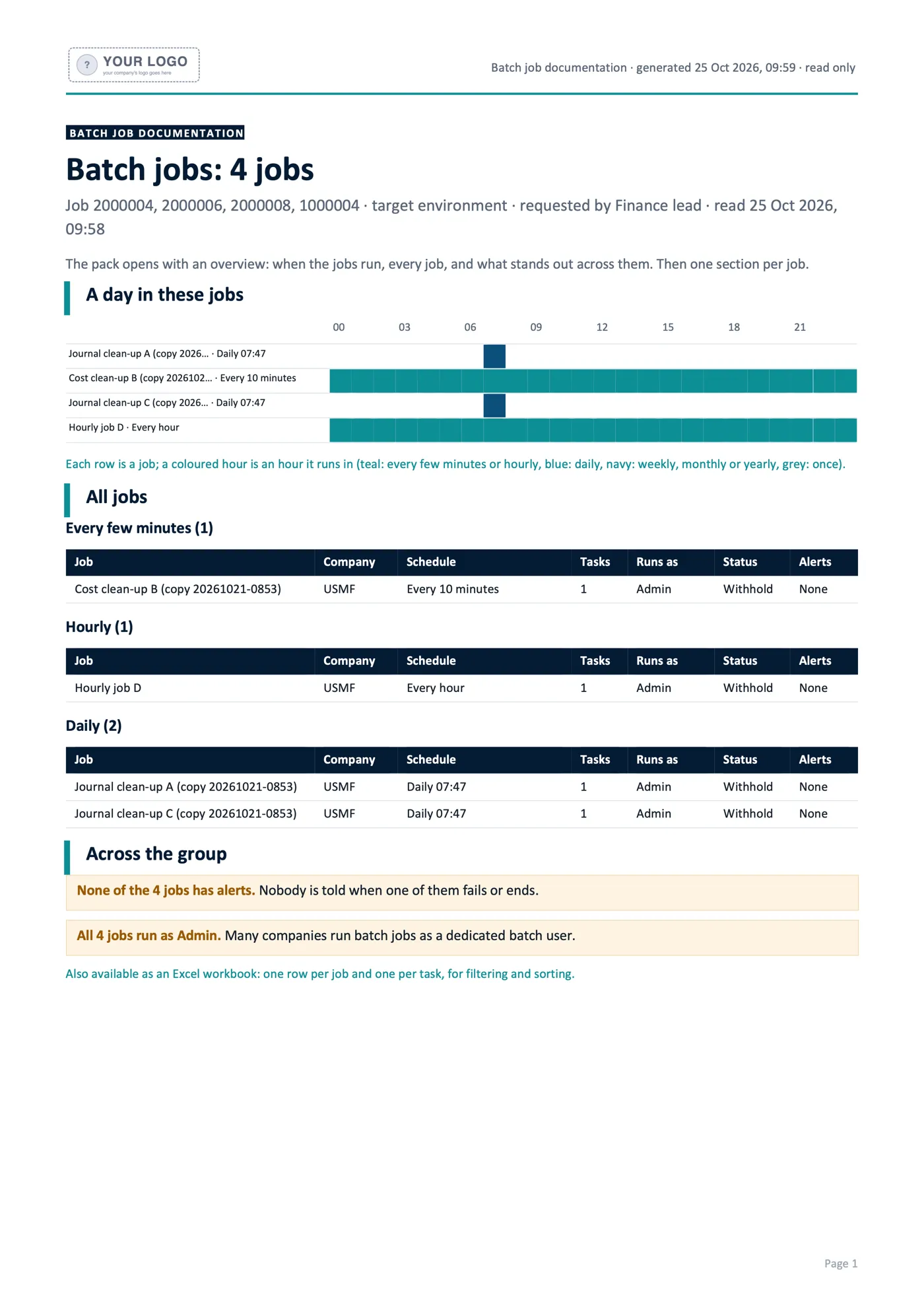
Copies batch jobs between environments, then reads them back and checks them field by field. Copied jobs wait in Withhold until someone releases them.
Inside the app
Real screens, demo data
What a consultant sees, from the first check to the hand-over.
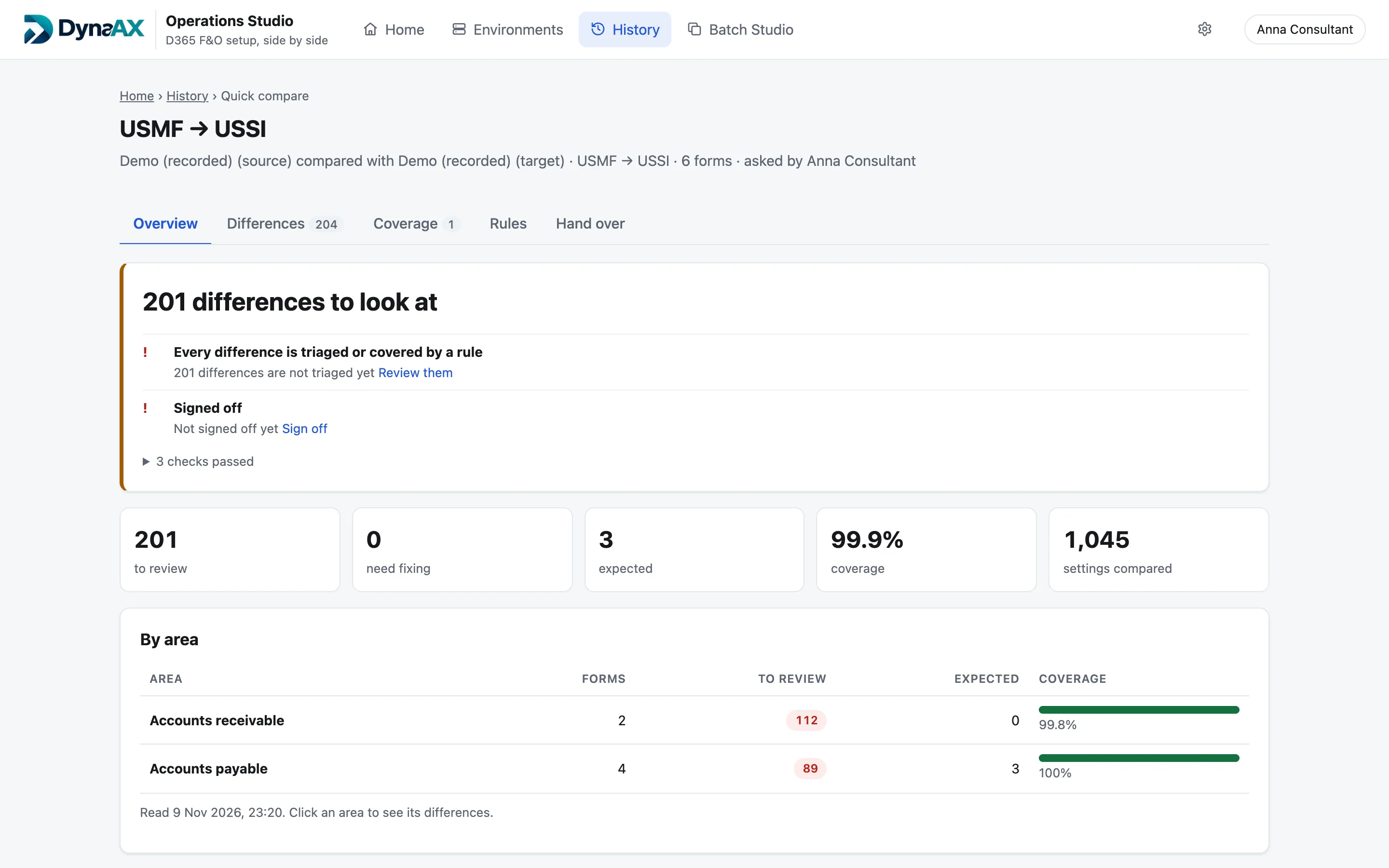
A verdict first, then what is still open
Every result opens with what to look at, what needs fixing and how much was covered, area by area.
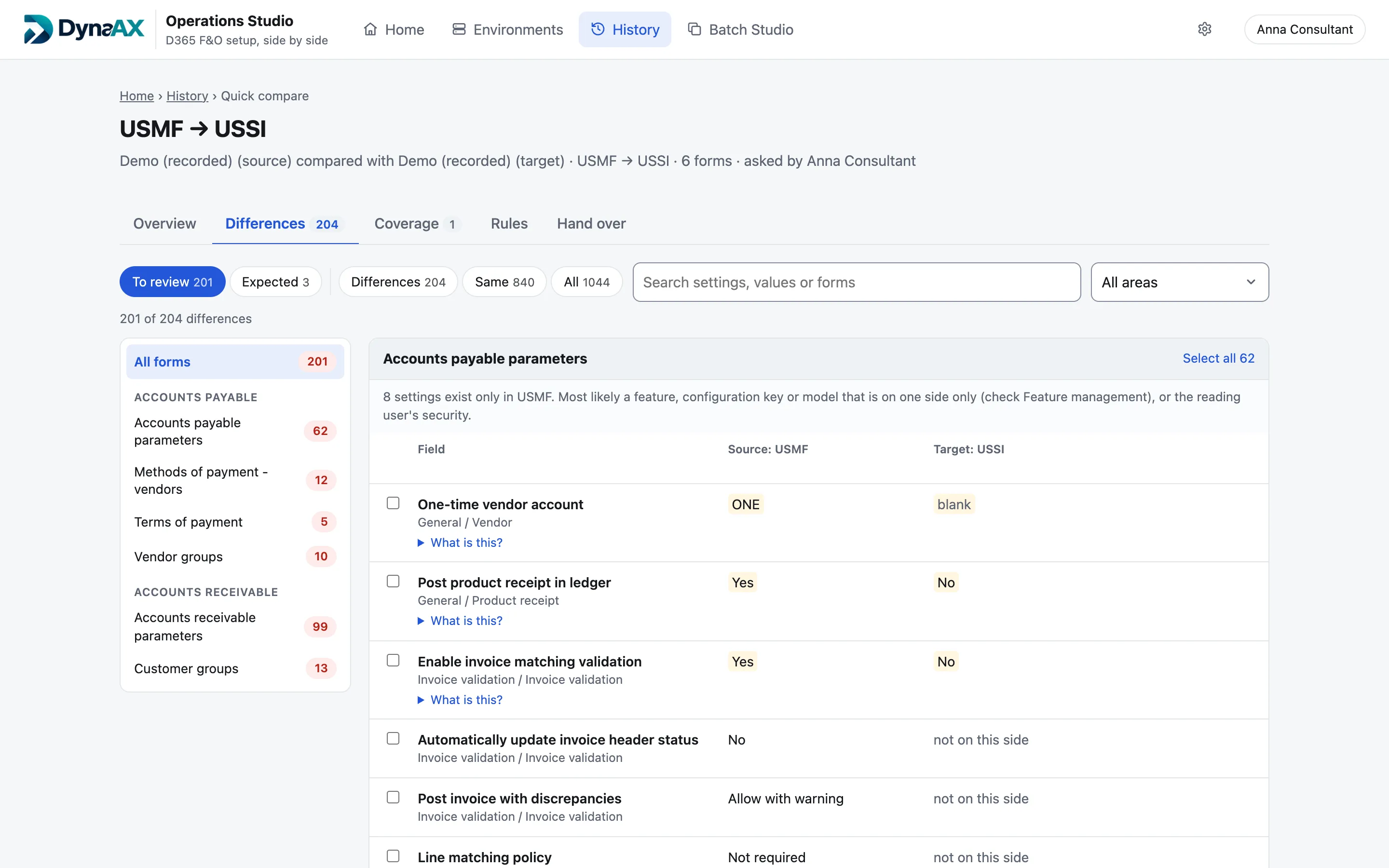
Every setting, side by side
Source and target values next to each other, named the way Finance and Operations names them. Mark each one Needs fixing, Expected or Investigate.
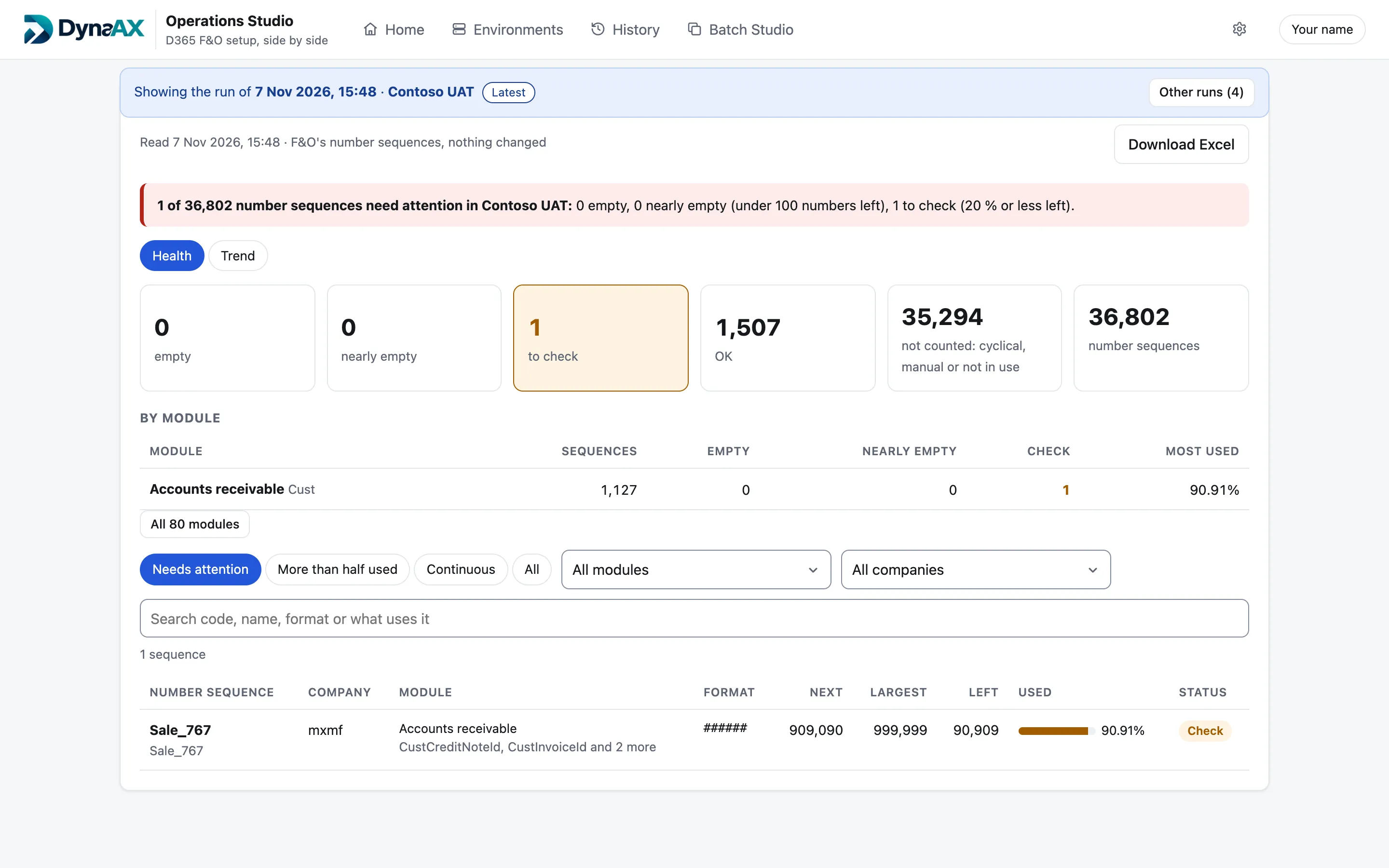
Number sequences, before they run out
One of ten environment checks: 36,802 number sequences read, and the one that needs attention found.
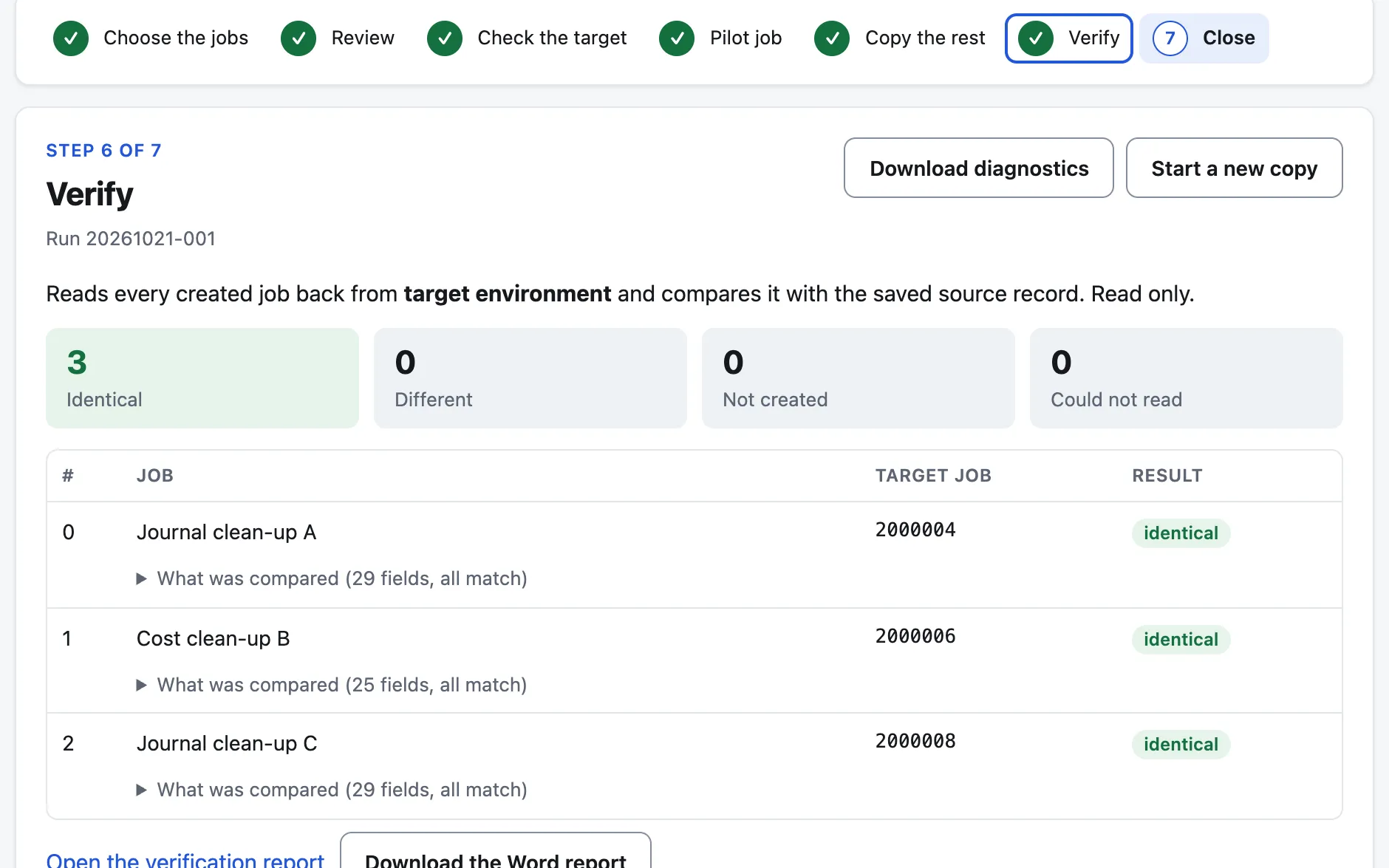
Batch jobs copied, then checked
Every created job is read back from the target and compared with the source, field by field.
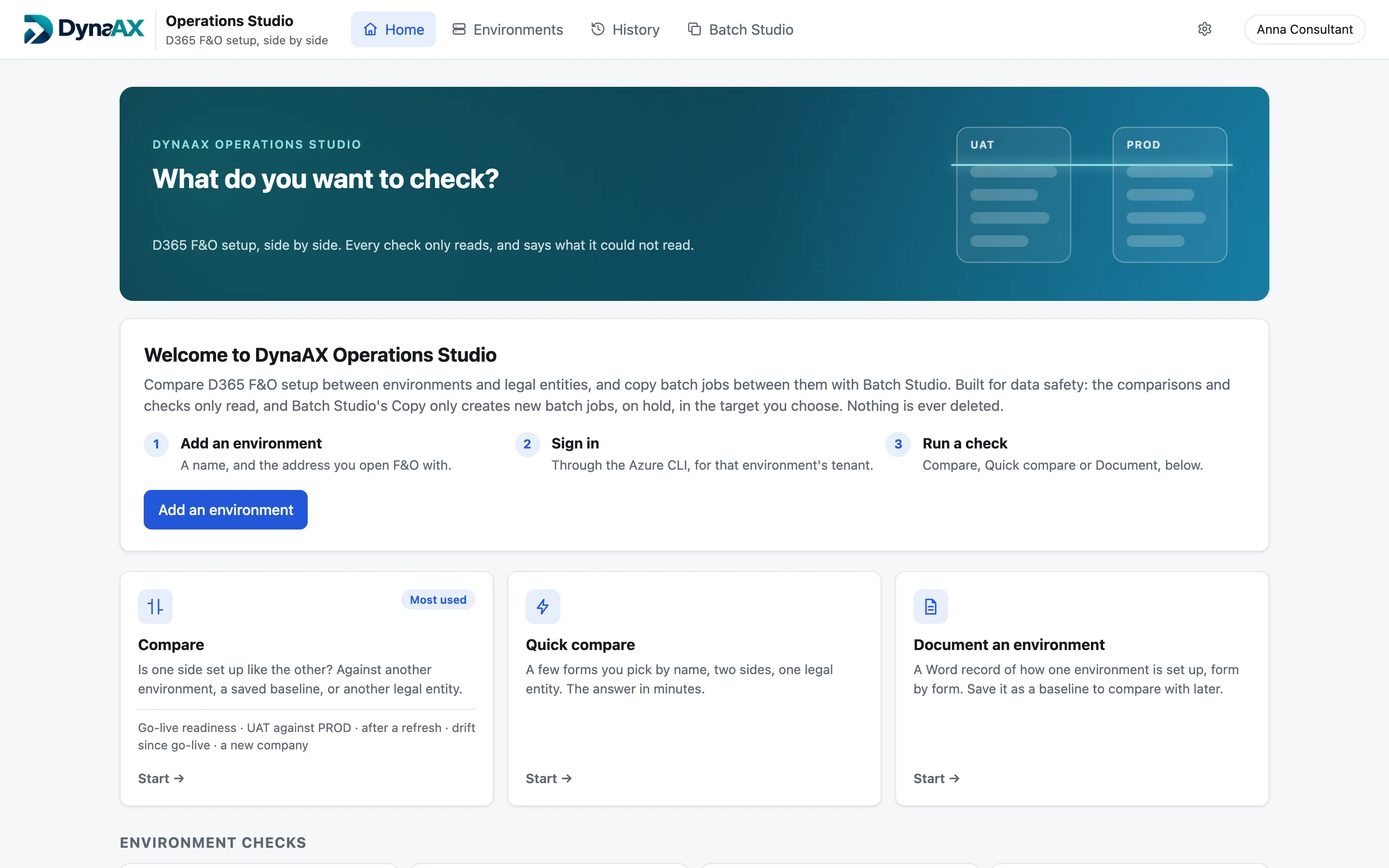
Pick what you want to check
Compare, Quick compare or Document an environment, plus ten environment checks, from one home page.
Environment checks
Ten checks that catch what drifts
Each one only reads, runs in the background and keeps its earlier runs, so the next result shows what changed since the last one.
Number sequences
Finds sequences about to run out before they stop work, and forecasts when they will.
Feature management
Features switched on in one environment and not in the other.
Configuration keys
Licence configuration keys that are on in one environment and off in another.
Data entities
Entities added, removed or changed between two environments.
Versions
The Finance and Operations release and quality update each environment runs.
Dual-write
Which table maps each environment has, and whether they are running.
Users and licences
Users whose roles need a different licence than they hold, and users disabled in Entra but still enabled in F&O.
Virtual entities
Which virtual entities are switched on in each environment.
After a database copy
After copying Prod to UAT, finds what still points at the original, such as email settings and Entra applications.
Warm-up after a deployment
Opens commonly used forms after a deployment, so your first users are not the ones waiting.
How a check runs
Five short steps, then a verdict
- 01
Sides
Choose the side that is right (UAT, a golden environment or a baseline) and the side to check.
- 02
Forms
Pick a business process such as Source to pay, or any single form, custom and ISV forms included.
- 03
Legal entities
The same companies on both sides, or pair different ones, such as USMF with a new company.
- 04
Who and why
Who is asking goes on the report. Tick go-live sign-off to get a Ready or Not ready verdict.
- 05
Read
See how many reads it takes and roughly how long, then start. You can leave the page while it reads.
Hand over
Ready for the go-live board, the auditor and the next consultant
Word summary
The verdict, the scorecard, what needs fixing, the expected differences and coverage.
Excel workbook
One sheet per area, the fix list, coverage and every setting that matched.
Fix list
What to change in the target, form by form, as a CSV file.
Sign off and seal
Records who signed off and when. Every file gets a fingerprint and the result can no longer change.
Built for data safety
Why IT and security teams say yes
Your setup is some of the most sensitive data you have. Operations Studio is built so it never has to leave the room.
It only reads
Comparisons and checks cannot save, set values or delete anything in Finance and Operations.
Runs on your own computer
Environments, snapshots and results stay in a folder on the consultant’s machine.
Your own Microsoft sign-in
It signs in through the Azure CLI, so it never handles a password or a token.
No AI reads your data
The app calls no AI model. Your setup is compared on your computer, and nowhere else.
Nothing installed in F&O
It reads through Microsoft’s own Finance and Operations MCP server. No extension, no package.
A signed record
Every run can end in a sealed sign-off: who checked, what was compared and why.
Questions
What customers usually ask
Does it change anything in Finance and Operations?
Compare, Quick compare, Document and the ten environment checks only read. The one exception is Batch Studio’s Copy, which creates new batch jobs in the target you choose, on hold (Withhold), until someone releases them. Nothing is ever deleted.
Where does our data go?
It stays on the computer that runs Operations Studio. Environments, snapshots, comparisons and templates are saved in its own workspace folder.
How does it sign in?
Through the Azure CLI, with your own Microsoft sign-in for each environment’s tenant. The app never sees a password or a token, and it can only read what that user is allowed to open.
Does an AI model see our setup?
No. Operations Studio calls no AI model. The comparisons run on your computer.
What do we need?
Finance and Operations 10.0.47 or later with its MCP server available, the Azure CLI on the list of allowed MCP clients, a user who can open the setup forms, and a Windows or macOS computer with Node.js 18 or later.
Will reading cost Copilot credits?
Reading goes through Microsoft’s MCP server. If the reading user has no Finance or Supply Chain Management Premium licence, Microsoft may bill Copilot credits for the calls. Operations Studio shows an estimate before every read.
What about our custom and ISV forms?
Add any form by its menu item name, the part after mi= in the address bar when the form is open.
Book a demo
See Operations Studio on your own questions
Tell us a little about your environments. Nurlin will set up a short call, show the app on demo data and answer your security team’s questions.
- A walk-through of Compare and the environment checks
- How it signs in, and why it only reads
- What a go-live sign-off looks like
Prefer email? Write to nurlin@dynaax.se.